
Find Information in QuickBooks
There are many ways to quickly find information in QuickBooks that you need. You may wish to search for a check, a sales order, a certain transaction, or other information.
How to Find Information in QuickBooks
One simple way is to use the find button built into many forms within QuickBooks. These forms include checks, sales receipts, purchase orders, invoices, and more. Below is an example from an invoice.
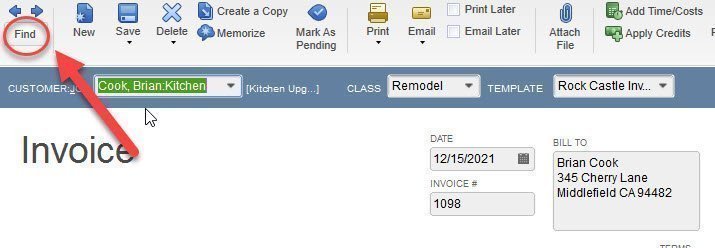
The Find Invoices popup window appears below after you click this button.
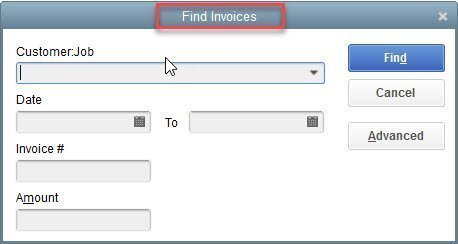
Using this window, you may search by customer, a date range, invoice number, or amount. Search by customer name, and the result will show all invoices for that customer. Click the blue Find button. Below is an example.

The screen displays several search results. You may double-click on any line to see the source document. You can hit the escape key to get back to the search results.
Like what you see? You can turn the search into a report by clicking on the Report Button.
Using the Edit/Find Feature
From the QuickBooks Home Page you can easily begin a search by selecting Edit on the menu bar.

Next, select the Find menu option.

When you use the Edit > Find option, you can choose between a Simple Find or an Advanced Find. A simple find is what we see when we use the Find Button on forms. Below is an example of a simple search. With the simple tab, you can select from several transaction types to search, such as invoice, check, etc. Here we are searching for an invoice. We can then enter a date range, invoice number, or amount.
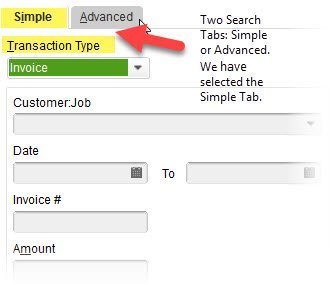
There are times you may need to find other information. For example, what if I want to see all transactions for a certain dollar amount? I want to include purchase orders, sales orders, invoices, checks, and any other transaction for that amount. How can I do this in QuickBooks? Use the Advanced Find Tab. When I select Edit > Find, I can choose the advanced tab. This will give me many more options. It is also a great point to begin creating reports with special information that you need. Reports such as these can be easily memorized and used later.
In the example below, we have searched for all transactions for $50. You can see the results.
