
How to Make Deposits in QuickBooks
Estimated reading time: 11 minutes
QuickBooks has a two-step process for depositing customer payments. This process can seem confusing and cause problems. If your income looks too high, you might want to keep reading. This will help you learn how to make deposits in QuickBooks.
The basic process is the same for both QuickBooks Desktop and QuickBooks Online. This post will cover both.
How to Make Deposits in QuickBooks
Deposits are a two-step process in QuickBooks.
- Receive the Customer Payment
- Record the deposit to your checking account.
Step 1: Receive the Customer Payment
The first step is to receive the customer payment.
Select +New > Receive payment.
Select Deposit To “Undeposited Funds.”
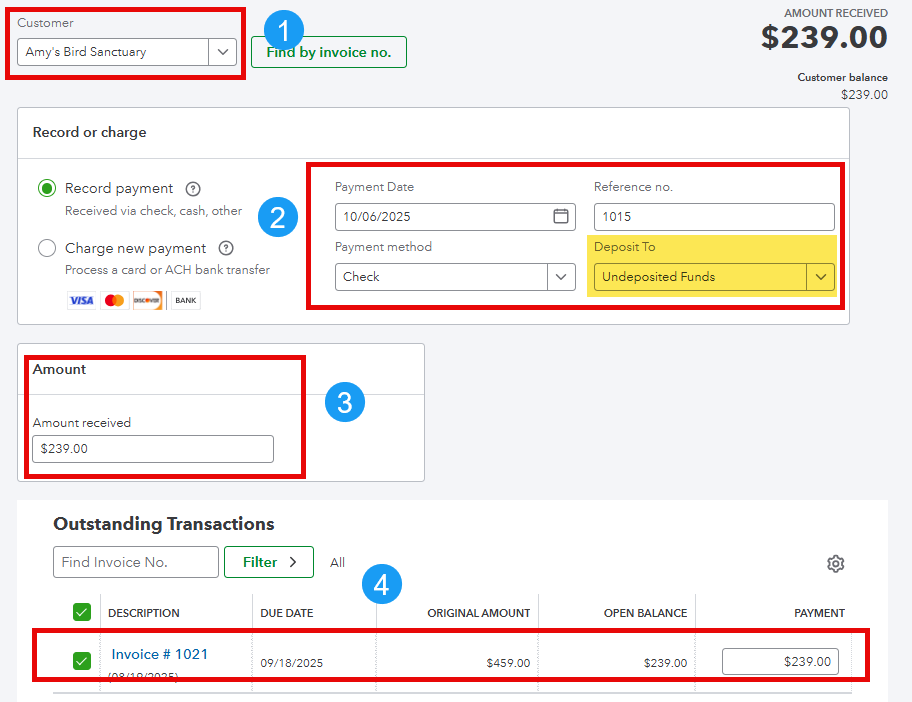
- Select a Customer Name
- Enter the payment date, payment method, reference number and make sure undeposited funds is selected.
- Enter the amount of the payment
- Select the invoice or invoices being paid.
If you are using a desktop version of QuickBooks (Pro, Premier, or Enterprise), from the top menu, select Customers > Receive Payments.

You may also use the desktop icon.

You will then see the following window:
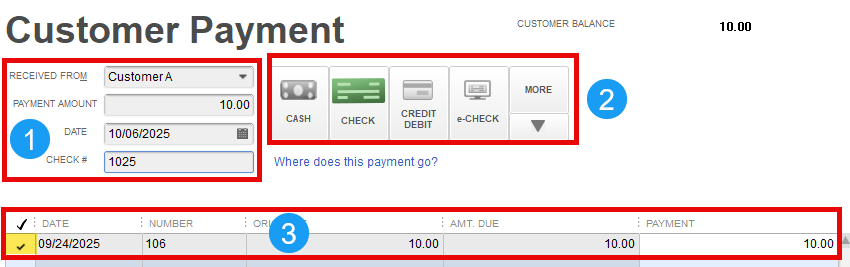
- Enter the customer name, payment amount, payment date and reference number
- Enter the payment type (check, credit card, etc.)
- Put a check mark next to the invoice or invoices being paid
Understanding the Process
Before you receive the customer payment (step 1), the customer has a balance in their account.

After you enter the payment, the customer balance will be reduced.
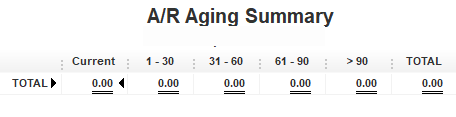
In accounting terms, a credit entry is made to the customer A/R account for the amount of the payment. But where does the cash go? What is the offsetting debit entry?
Undeposited Funds
QuickBooks makes the following entry when you receive a customer payment:
Account | Debit | Credit |
|---|---|---|
Undeposited Funds | $2,500 | |
Customer A/R Account | $2,500 |
When you receive a customer payment, the cash is not deposited directly into your checking account. That is completed in Step 2: Make Deposits.
Once you receive the customer payment in Step 1, the amount will appear in Undeposited Funds. This account is found on the balance sheet.

Step 2: Record the deposit to your checking account
The next step is to deposit the funds to your bank account.
If you are using QuickBooks Online, select +New > Bank deposit
Be sure to select the correct checking account and use the deposit date (which may be different than the check date used in Step 1).

Here is a summary of the 2 steps.

If you are using a desktop version of QuickBooks, from the top menu, select Banking > Make Deposits.

You can also follow the desktop workflow and select the Record Deposits icon.

In accounting terms, QuickBooks will move the money from the undeposited funds account to your checking account, both of which are found in the asset section of the balance sheet.
QuickBooks makes the following entry when you complete Step 2.
Account | Debit | Credit |
|---|---|---|
Checking Account | $2,500 | |
Undeposited Funds | $2,500 |
After step 1 (receive customer payment), your balance sheet looked like this:

After the deposit is made in step 2, the balance sheet will look like this:

The undeposited funds account has a zero balance, and the money is reflected in the bank checking balance.
The only balance in undeposited funds, should be the total of checks and electronic payments that you have not yet deposited.
The Purpose the Undeposited Funds Account
What is the purpose of the Undeposited Funds account? Here is an example.
We receive 3 customer checks, all on the same day. We take all 3 checks to the bank at the same time. The deposit amount of $2,750 is the total of all 3 checks.
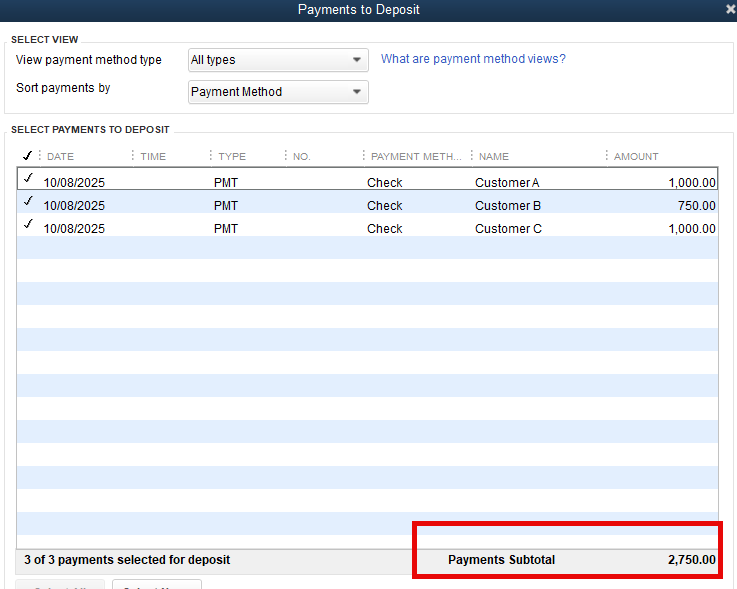
The monthly bank statement will show a deposit on that day for a total of $2,750 as a one line item.
The purpose of the Undeposited Funds account is to group checks by deposit totals to make reconciling the account easier. Instead of having to research which customer checks are included in each deposit, the checking account will show deposit totals and can be easily matched to the bank statement.
Instead of seeing a separate line for each check, the check register will just show one line for the deposit total. This matches the bank statement and makes it a breeze to reconcile!

Electronic / ACH Payments
Please note that there should be a separate deposit for each electronic/ACH payment. Why? Each ACH payment will appear as a separate line on the bank statement.
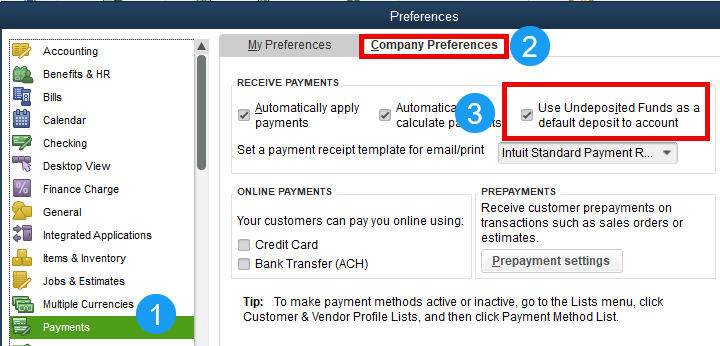
The Default Setting in QuickBooks Desktop
By default, customer payments received will use the Undeposited Funds account.
This default setting can be changed. In single-user mode, from the top menu, select Edit > Preferences. When the Preferences window opens, follow these steps:
- On the left, select “Payments.”
- At the top, select “Company Preferences.”
- Unchecking this box “Use Undeposited Funds as a default deposit to account” will give you the option to use either checking or undeposited funds for payments received.

How Income can be Doubled
Some of you may be reading this because your income looks too high. How can this happen? Here is an example.
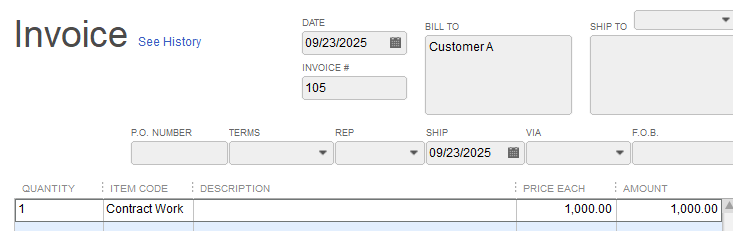
A customer is sent an invoice for $1,000.
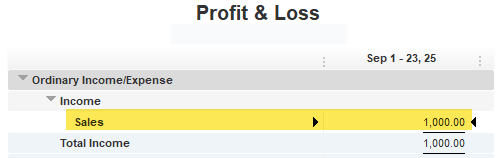
We receive the payment for $1,000. This increases sales by $1,000 (credit) and increases undeposited funds by $1,000 (debit).
Our profit & loss statement will show income of $1,000 (both cash and accrual basis). That is the correct amount. We are good so far. Keep reading.
Since we have not completed step 2 (make deposits), the money is not yet showing in the checking account.
If step 2 is never completed, that is where trouble begins. The money is still sitting in Undeposited Funds.
When reconciling the bank account, if step 2 is not completed, you will not see the $1,000 deposit in the check register.
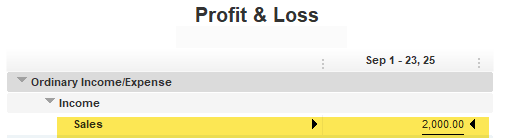
The trouble can occur when an additional entry is made for the $1,000. If an entry is made directly in the check register for the “missing” deposit, your income will now show as $2,000. I have seen the following entry made in many company books. This entry is incorrect and will double income. This register entry adds an additional $1,000 to sales, thus doubling income. Step 2 should have been completed to deposit the funds instead of creating an entry in the register.

Digging Deeper
After the incorrect entry, shown above, is made, the Profit & Loss shows income of $2,000. Income is doubled.
Where is the original $1,000 we correctly deposited in step 1? It is still in the Undeposited Funds account shown on the Balance Sheet.
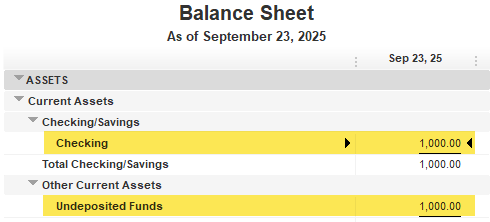
Completing step 2 (make deposits) would have moved the $1,000 from Undeposited Funds to the checking account, leaving income as $1,000 and a zero balance in Undeposited Funds.
Here is what the reports should look like when both steps are completed correctly:


Fixing Doubled Income
In the above example, a journal entry could be entered to Sales (debit) and Undeposited Funds (credit) for $1,000. This entry will fix our financial reports in this simple example.
However, the scenario is often far more complicated. The corrections may cross multiple tax years, and there may be a mix of correct and incorrect deposits.
If you suspect a large number of incorrect entries or a large dollar amount, I highly suggest you contact your tax professional, a business consultant, or a QuickBooks ProAdvisor.
Summary
Deposits are a two-step process in QuickBooks.
- Receive the Customer Payment
- Record the deposit to your checking account.
If your income is overstated, there may be a mix of correct and incorrect entries, and it may involve multiple tax years. In addition, if you have been taking sales figures from QuickBooks and using Excel to calculate sales tax, sales commissions, forecasts, and other reports, you may want to contact your trusted tax advisor, business consultant, or QuickBooks ProAdvisor.
FAQ
How do I enter a deposit in QuickBooks?
Entering deposits in QuickBooks is a two-step process:
1. Receive the Customer Payment
2. Record the deposit to your checking account.
Should Undeposited Funds have a balance?
The balance should be the total of all checks and other payments received (in step 1) that have not been deposited (in step 2). If you have a large balance in undeposited funds, you may have an issue.
What about EFT payments?
Since these will show as an individual line item on your bank statement, a separate deposit is normally created for each EFT payment.
Support Links
Here are some great support links: