
Landed Cost in QuickBooks
Estimated reading time: 6 minutes
Do you need to include the cost of transportation and tariffs in your inventory? Using the new Landed Cost feature, QuickBooks now allows you to add these and other related costs to inventory items.
Please note that Landed Cost in QuickBooks requires Desktop Enterprise with Platinum and Diamond subscription levels. It is an advanced inventory feature.
QuickBooks Enterprise 24.0 R11 added some new features to landed cost. If you have not updated to the 24 edition or higher, you might consider it.
What is Landed Cost?
Landed costs are charges associated with purchasing an inventory item, such as
- Shipping/freight
- Customs duties and tariffs
- Insurance
- Brokerage, port, and terminal fees
- Currency Conversion
- Other related costs
Often, this is recorded as an expense to the profit and loss statement. But how do you know if you are charging enough for each product?
Instead of appearing as an expense on the P&L, each charge can be included in the cost of your inventory. The charges will be included in inventory (and shown on the balance sheet) until the item is sold. When the item is sold, it will be included in cost of goods sold.
You may wish to discuss the tax implications of this with your CPA.
How to Set Up Landed Cost
Landed costing is an advanced inventory feature. Advanced Inventory settings are found in preferences.
From the top menu, select Edit > Preferences.
Then select:
- Items & Inventory
- Company Preferences
- Advanced Inventory Settings
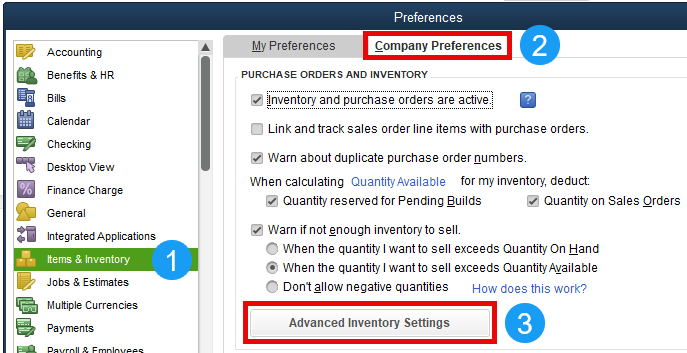
You should then see the Landed Cost tab at the top right.

The first time you click on the landed cost tab, you will see a message prompting you to set up a landed cost account.
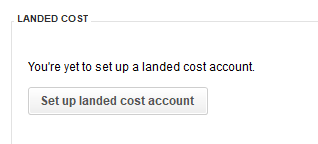
Select “Set up landed cost account.” This will begin a two-step process:
- Set up account
- Map shipping and handling items
1. Set Up a Landed Cost Account
The first step is to set up a new account on the chart of accounts. The landed cost account is normally an Other Current Asset account, but QuickBooks also presents Cost of Goods Sold as an option. The landed cost account acts as a holding account for related costs until they are allocated to specific inventory items. This account could be named “Landed Costs to Allocate” or something similar.
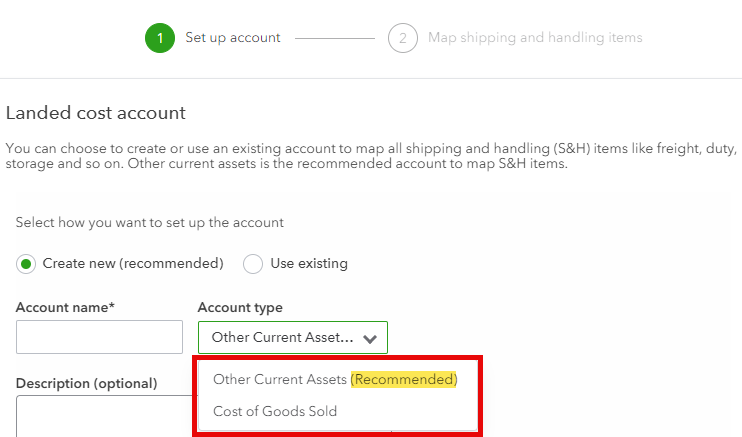
2. Map Shipping and Handling Items
Every related charge should be set up as an item and mapped to the Landed Cost account. In addition to shipping and handling, this can also include items for tariffs and other related charges.
How to Enter Transactions
Charges can be entered on bills and checks using the items tab. After you save the transaction, you will see the following message: “Includes S&H Costs.”
You can also enter the charges on a purchase order. Since purchase orders are non-posting, the charge is not entered on the books until converted to a bill. Therefore, you will not see the message on a purchase order.

Viewing Allocated Transactions
Charges will accumulate in the landed cost account. This account is normally another current asset and is shown on the balance sheet.
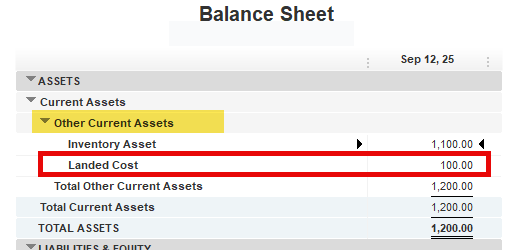
How to Calculate Landed Cost
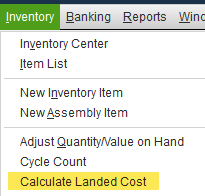
From the top menu, select Inventory > Calculate Landed Cost
Once transactions have been entered, QuickBooks has a three-step process to allocate shipping and other costs.
- Select the shipping bill
- Select the bill with inventory received
- Select an allocation method

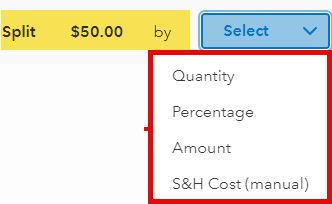
QuickBooks will allow you to allocate the charges to one or more items using various methods of allocation.
Automatic Price Updates
An added bonus of using Landed Cost in QuickBooks is the ability to automatically update the sales price of items with added costs.

Other Considerations
Using the Landed Cost feature will include other costs in inventory. Normally these costs would have gone directly to expense accounts on your Profit and Loss statement. These can result in lower expenses and higher income during the short-term adjustment period.
I highly recommend that you speak with your CPA or business advisor prior to enabling this feature.
A QuickBooks ProAdvisor can also guide you through setting up a test file before going live.
Quick Links
How to set up landed cost in QuickBooks Desktop Enterprise