QuickBooks Online allows you to “close the books.” In this blog you will learn:
The purpose of this feature and what it does.
How closing the books can improve your workflow process.
Why Close your books using QuickBooks Online
The option is available in QuickBooks to “lock” prior period financial data. It can prevent changes to transactions in earlier years. It can also prevent new transactions from being entered into earlier periods.
Changes to prior periods should not be made after the books have been provided to the tax preparer. This feature can help prevent that from happening.
The true accounting process of closing out the books is automatically done by QuickBooks. At year-end, net income accounts are closed out to retained earnings. Your new year starts with a clean profit and loss statement.
This option to “close the books” simply prevents changes to prior periods. QuickBooks automatically creates year-end accounting entries to close the books whether or not this setting is enabled.
Books Not Closed
Book Closed
Entries can be made to prior Years
Warning or Password Required
No Report of Entries to Prior Years
Report shows entries to Prior Years
How to Close the Books
From the top right of your screen, select the gear icon > Account and settings.
Note: This feature must be activated by a primary or company admin.
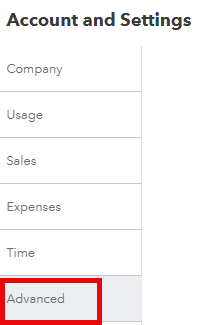
Select Account and Settings > Advanced
In the Accounting section, you will see the option to “Close the books.”
If this is turned off, select the pencil icon to edit.
After selecting the pencil icon, click the green button to turn on this feature.
QuickBooks will ask you to select a closing date and give you two options:
1. Allow changes after viewing a warning
2. Allow changes after viewing a warning and entering a password
Closing the Books After Viewing a Warning
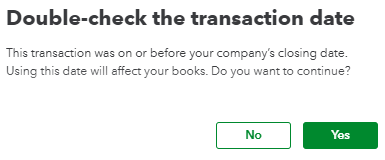
If this option is selected, the user will receive a warning only. No password will be required to enter a transaction in a closed period.
The user will be able to save the transaction without a password.
Closing the Books with a Warning and a Password
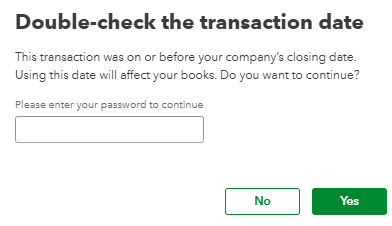
If the user is required to enter a password, they will receive the following message:
The user will not be able to save the transaction without a password.
A message will appear, but no password is required. The user can make changes to prior periods (years). All prior period transactions will show on the closing date exception report.
Without a password, a user cannot enter transactions for prior periods. If a password is entered, the user can make changes to prior years. All prior period transactions will show on the closing date exception report.
Closing Date Exception Report
So now what? How can you tell if any entries were made before the closing date?
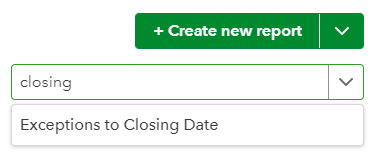
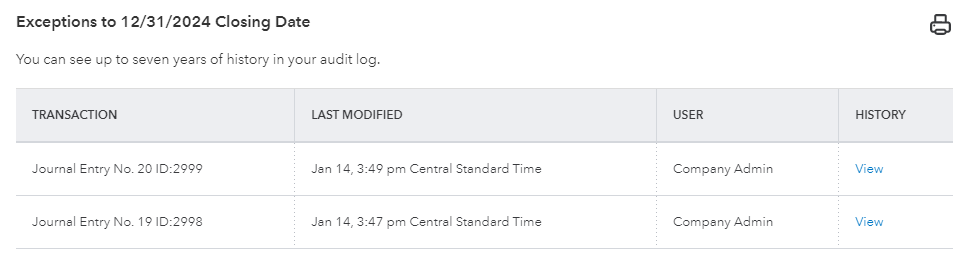
Head to the reports section and search for “closing.” You will see a report, “Exceptions to Closing Date.”
Here is an example of the report:
This report will show any entries made before the closing date. Exceptions are recorded with or without a password requirement. The closing date feature must be turned on.
The Closing Feature in QuickBooks can help maintain the integrity of the books.
When to Close your books using QuickBooks Online
After you enter all your data for a year, you should update the closing date.
Can you update it more often? Yes! Some users update this every month after the books are closed. For example, if all the data for June is entered by July 10th, you can update the closing date to June 30th.
You can also update the password any time. It is up to you.
I strongly recommend using this feature when sending reports to your tax preparer for the annual return.