Link QuickBooks Purchase Orders
New Feature! QuickBooks Enterprise links purchase orders with sales orders. This is a great time-saver that can improve your inventory management workflow.
How to Create a Purchase Order from a Sales Order
QuickBooks allows you to create a Purchase Order from an existing sales order.
After you save a Sales Order, select “Create Purchase Order” at the top right. QuickBooks will now create a purchase order for you.
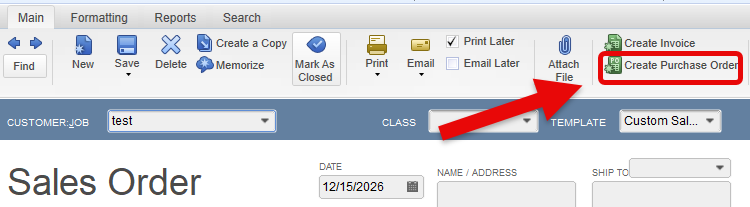
A new feature in QuickBooks now shows the Purchase Order number on the Sales Order and will display a hyperlink.
How to Link QuickBooks Purchase Orders
Linking first needs to be enabled in preferences.
First, switch to single-user mode.
From the top menu, select Edit > Preferences.
Then follow these steps:
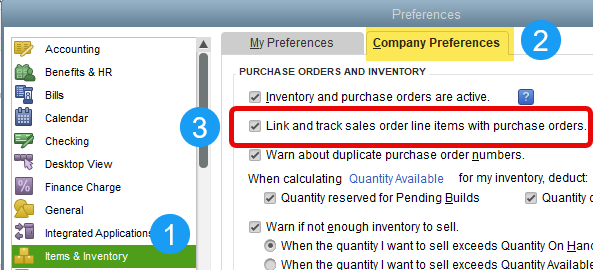
- At the left, select “Items & Inventory.”
- At the top right, select “Company Preferences.”
- Click the option “Link and track sales order line items with purchase orders.”
Using the new Link Feature
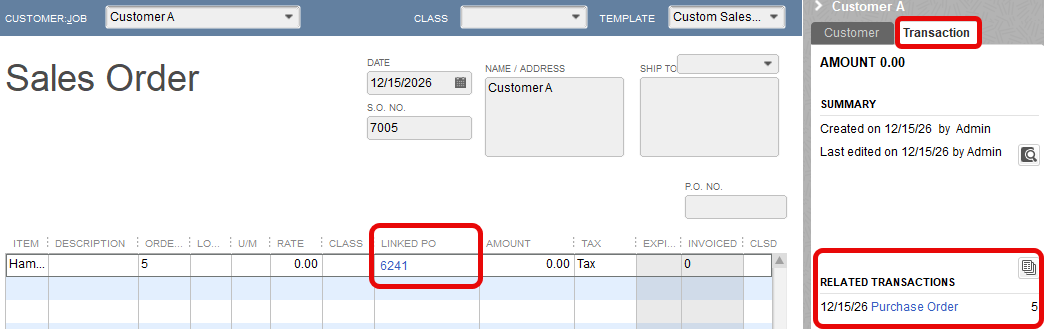
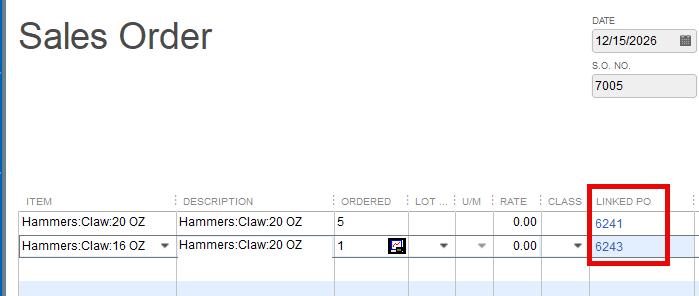
Once enabled, QuickBooks adds a new column on Sales Orders: Linked PO. Clicking the hyperlink will open the Purchase Order.
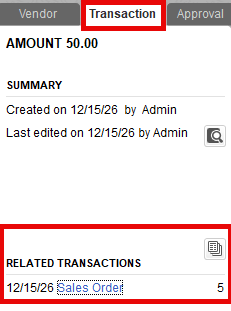
You can also select the Transaction tab at the right and click on Purchase Order in Related Transactions.
Link on Purchase Orders
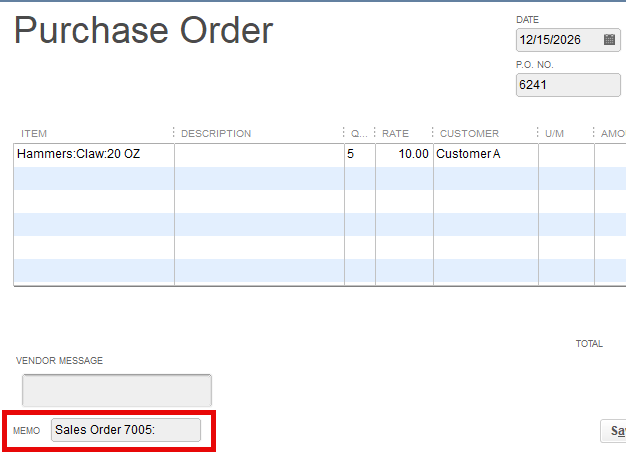
While the form itself does not have a link, QuickBooks adds the Sales Order number to Purchase Orders in the memo field at the bottom left.
Purchase Orders also have a link to the Sales Order on the transaction tab.
Link QuickBooks Purchase Orders at the Item Level
This feature provides item-level linking. If you fulfill a Sales Order from multiple suppliers, QuickBooks will show the correct Purchase Order link on each line.
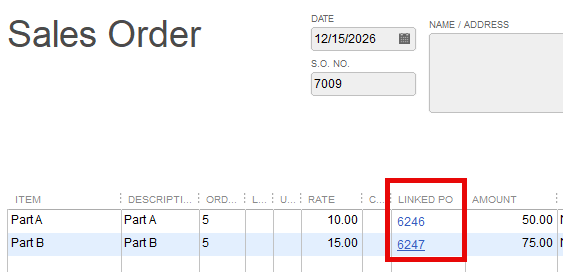
In the example below, each item was ordered from a separate supplier. Therefore, there are two Linked PO numbers.
Multiple Suppliers
Multiple Purchase Orders can be created if ordering from more than one supplier.
For example, a Sales Order is created, and each part has a different supplier.
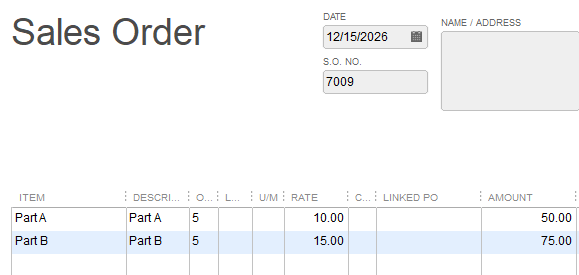
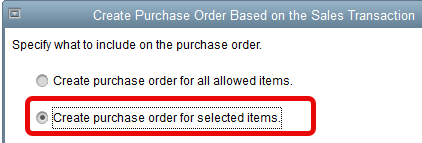
When creating a Sales Order, select “Create purchase order for selected items.”
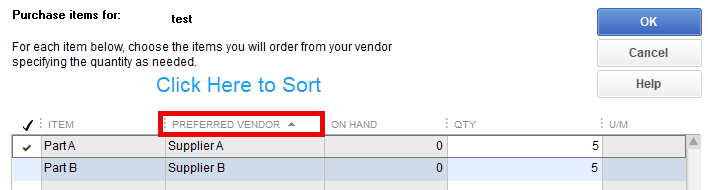
You will then select both specific items and quantities to order.
This window also shows Preferred Vendors. Clicking at the top of the Preferred Vendor column allows for sorting.
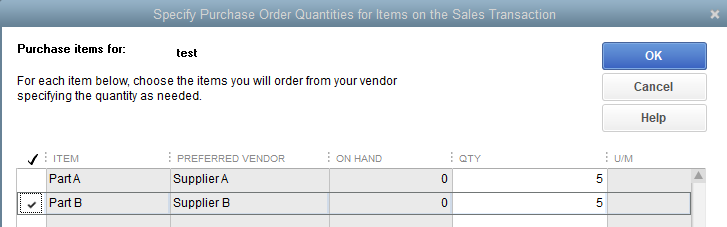
To order from another supplier, repeat the same process to order for Part B.
The Sales Order will then show both Purchase Orders in the “Linked PO” column.
If you accidentally try to order an item twice, you will get the following message:
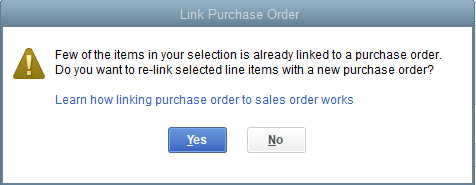
Quantity Ordered
Note that even if your inventory is negative, it is only using the quantity on the Sales Order when a Purchase Order is created.
Sales Order Customization
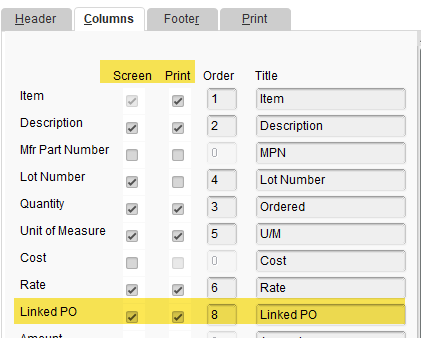
Sales Orders with the Linked PO feature can now be customized to:
- Print the link column on the form
- Show the link column on the screen
Unchecking the box in the print column would show the link on the screen but not print it.
New Report
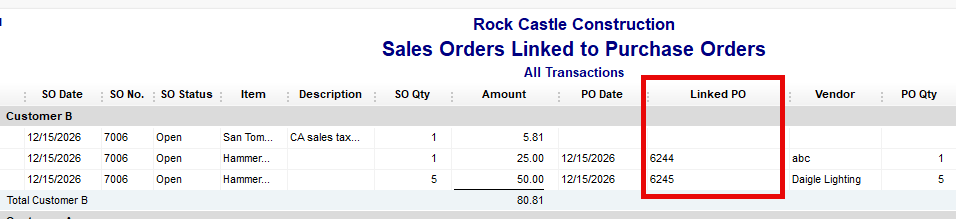
Sales Orders linked to Purchase Orders is a new report to keep track of this information.
From the top menu, select Reports > Sales > Sales Orders Linked to Purchase Orders.