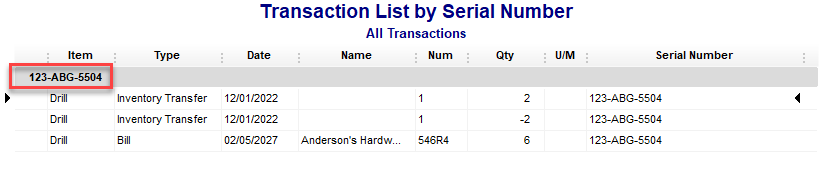
Find Serial Numbers in QuickBooks
QuickBooks Enterprise with advanced inventory offers a feature to track products by serial number. It can track dozens, even hundreds, of serial numbers. Eventually you may wish to search for and find serial numbers in QuickBooks.
How to Find Serial Numbers in QuickBooks
There are two ways to find serial numbers in QuickBooks.
- Use the Advanced Find Feature
- Open the Transaction List by Serial Number Report
Using the Advanced Find Feature
From the menu at the top of your screen, select Edit > Find. You may also select Ctrl+F.
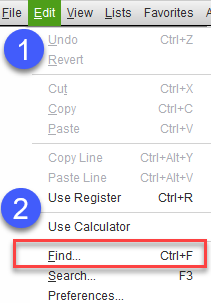
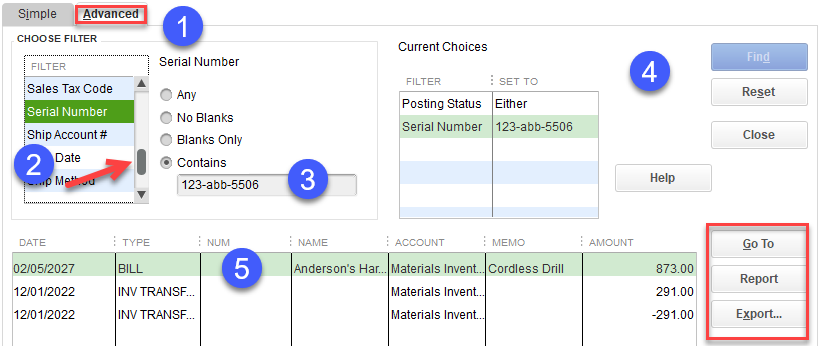
This opens the “find” window. You can search for specific serial numbers from here.
- First, select the Advanced tab at the top
- Select “Serial Number” as the filter
- Enter all or part of the number in the “Contains” box
- Select “Find.”
- You can double-click on related transactions at the bottom and then hit the escape key to get back to the find screen.
If desired, you can also use the Report or Export options on the right.
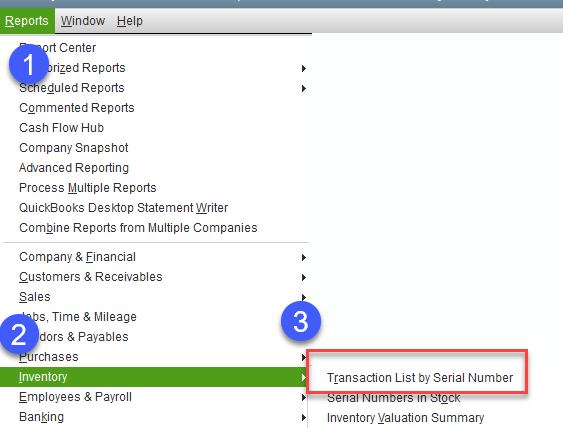
Open the Transaction List by Serial Number Report
Another way to find serial numbers in QuickBooks is to use the Transaction List by Serial Number Report.
From the menu at the top of your screen, select Reports > Inventory > Transaction List by Serial Number .
A new window will appear. The Filter Report by Serial Number pop-up will allow you to select an item.
- Select an item from the drop-down list.
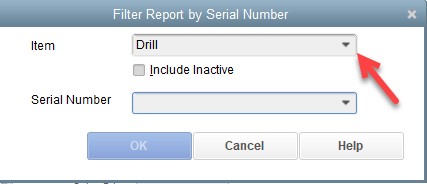
2. This will display all the serial numbers available for that item. Select a serial number from the drop-down list. Select Find.
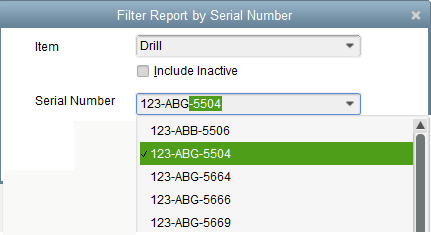
3. This will display a report with all the transactions related to that serial number. You can double-click on any line on the report to display the transaction. Hit the Esc key to get back to the report.