
The Sales Order Fulfillment Worksheet
Estimated reading time: 4 minutes
The Sales Order Fulfillment Worksheet in QuickBooks Enterprise is an Advanced Inventory Feature that can improve your workflow.
What is the Sales Order Fulfillment Worksheet
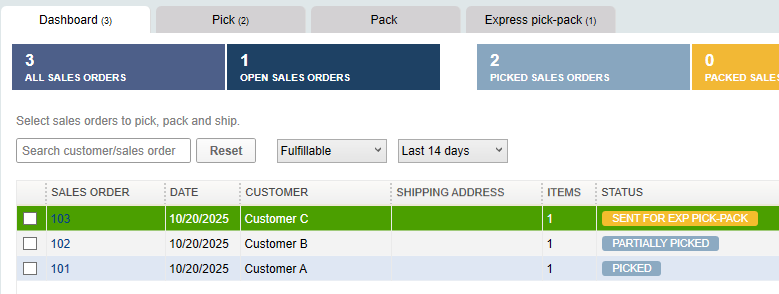
The Sales Fulfillment worksheet provides you with a dashboard to easily see the status of unfulfilled orders all in one place.

This dashboard will allow you to track which orders have been picked and packed. It can greatly improve your inventory management workflow.
How to Activate the Worksheet
To activate the fulfillment worksheet, you will need to access Advanced Inventory settings. Note: this change requires single-user mode.
From the top menu, select Edit > Preferences.
- On the left, select Items & inventory.
- Then navigate to the Company Preferences tab at the top.
- At the bottom, select “Advanced Inventory Settings.”

Select the Site Operations tab > Enable Sales Order Fulfillment Worksheet

Menu Options
Once activated, you can access the spreadsheet using the following menu option:
Customers > Sales Order Fulfillment Worksheet
Changes to the Sales Order Form
Activating the Sales Order Fulfillment Worksheet option will add columns to the Sales Order Form.
Before you activate this feature, the form looks like this:
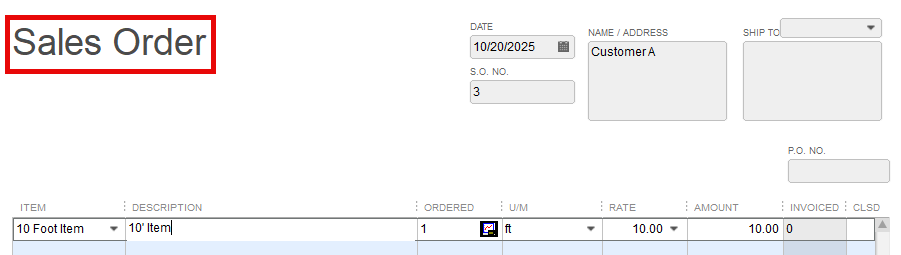
After this feature is activated, two new columns are added:

By default these columns are view only; this can be changed to not show at all.
Using the Worksheet
The worksheet has four tabs:
- Dashboard
- Pick
- Pack
- Express pick-pack
Dashboard
Once you create a sales order, it will appear, along with other open sales orders, on this dashboard.
Pick
Selecting a sales order on the left will allow you to select an option in the column on the right. Options include send for picking, packing, or both (express).

You can assign the pick list to a specific worker and track the progress. Notes can be added.

Note that the pick list can be sent to a worker on a tablet using the free Intuit Warehouse App.
Pack
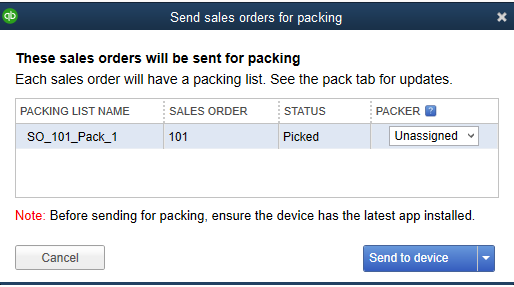
Once an order has been picked, the packing process can also be tracked. This is useful if another worker is packing but not picking.
Express Pick-Pack
If both picking and packing are completed at the same time, the express pick/pack option may be better for your workflow.

Support Links
Use the Sales Order Fulfillment Worksheet
Pick Tab in Sales Order Fulfillment