
Serial and Lot Numbers in QuickBooks
Serial and lot numbers in QuickBooks Enterprise can greatly enhance your ability to track products for recalls, warranties, and more.
Estimated reading time: 8 minutes
QuickBooks Enterprise has an advanced inventory feature that allows you to track products by serial or lot numbers. This feature is activated in advanced inventory preference settings. You can select either serial or lot numbers, but not both.

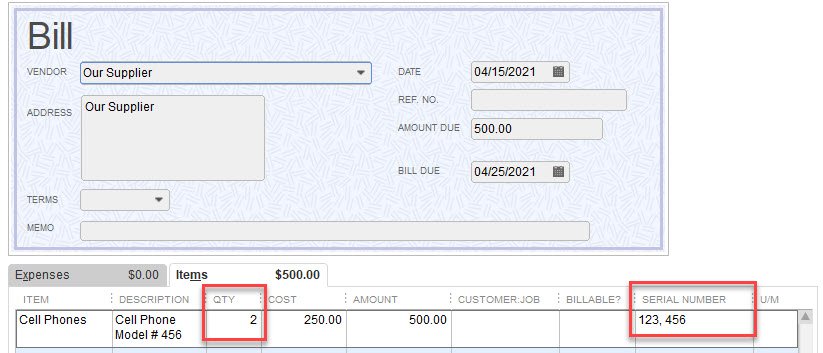
Once activated, a lot or serial number column will be added to forms for sales, purchases, inventory adjustments, and build assemblies. Here is an example of an item receipt with a serial number column. Notice this receipt has a quantity of 2. Serial numbers are separated by a comma.

Lot vs. Serial Numbers
QuickBooks Enterprise will allow you to activate either lot or serial numbers, but not both. So which one should you use?
Lot Numbers
The difference between the two may best be seen with an example. If you buy a bushel of apples, they are delivered in a large bulk quantity (a lot). This entire shipment will have just one number for all the apples.

Serial Numbers
If you buy and sell cell phones, for example, each phone has a separate serial number. So if purchasing 2 phones, there have to be two serial numbers.
Forms using Lots and Serial Numbers
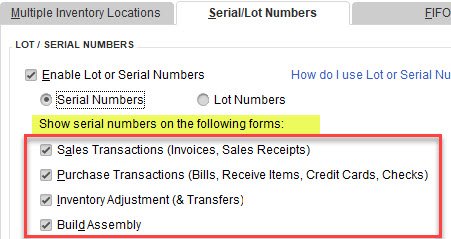
QuickBooks will add a column for serial or lot number to several forms. These forms include:
Purchase Forms:
Sales Forms:
Inventory Adjustments
Build Assembly
Setup Options
QuickBooks allows you to select the form types you wish to use with lots and serial numbers.
There are default settings that can make serial or lot numbers mandatory for item receipts, sales receipts, invoices, inventory adjustments, and transfers.
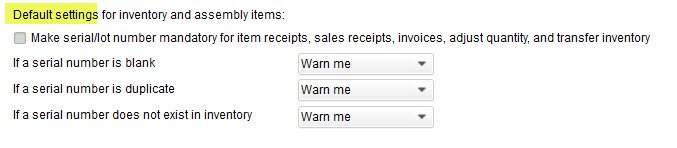
Further options allow you to warn or not warn if a number is blank or does not exist in inventory (for sales and transfers), and serial numbers can also have a warning for duplicates.
The default settings can be changed on a per-item basis on the item setup screen.
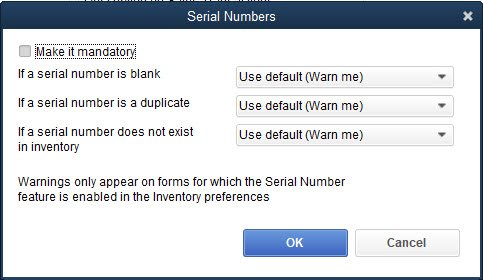
Individual inventory items can be edited to remove the requirement for serial numbers. This is useful if only some of your inventory requires serial numbers.
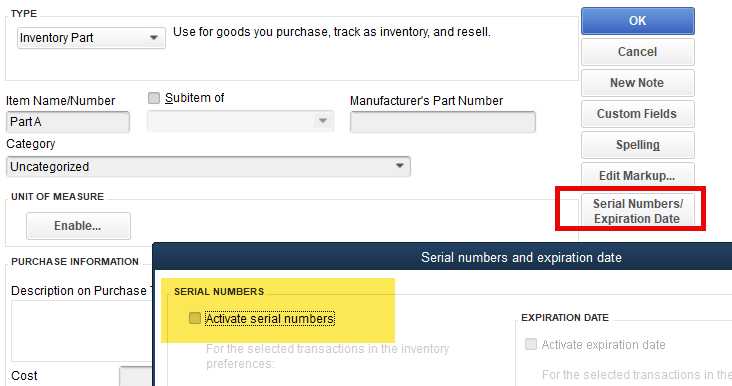
This can be adjusted in bulk on the add/edit multiple screen.

Expiration Dates
Expiration dates can now be added.
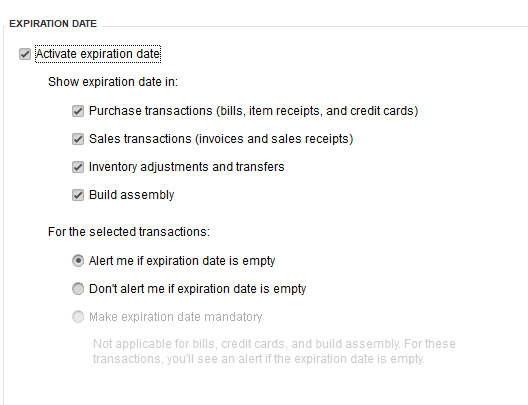
This would allow expiration dates to be added when receiving items.

QuickBooks added a great new report for expiration dates.

Entering Transactions with Serial or Lot Numbers
Serial and lot numbers are not entered on purchase orders. You do not enter these numbers until the items are received. If your supplier has emailed you a list of serial numbers, this can be copied into the QuickBooks form.
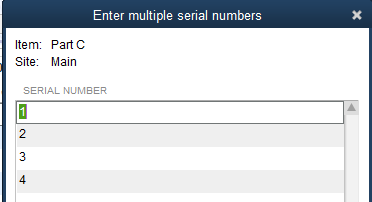
For example, if entering a transaction on an item receipt, you can click on the arrow in the serial number field. This will allow you to enter multiple serial numbers.

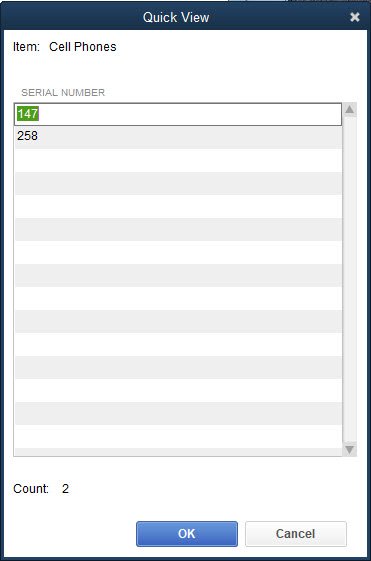
Clicking the arrow will open a window that allows you to enter (or paste) multiple serial numbers.
Entering Adjustments
A new inventory adjustment feature allows you to both add and remove serial numbers. This can be useful when corrections need to be made. The pop-up window shown above is available here also to enter multiple numbers.

Reports for Serial and Lot Numbers in QuickBooks
Several new reports have been added for this feature, including
Transaction List by Lot/Serial Number
Serial/lot numbers in stock
Serial/lot numbers in stock by warehouse
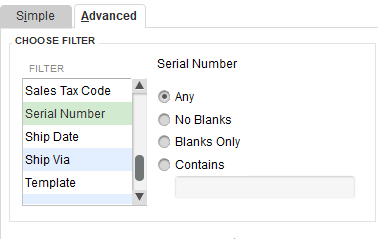
There is also a new advanced find feature that can be used to create reports.
Adding Numbers to Existing Inventory
If you have purchased inventory without recording lots or serial numbers, this information can be added at any time. The inventory adjustment screen (discussed above) can be used. Numbers can even be clipped and pasted from a spreadsheet.
The inventory adjustment screen will now show a new option and allow you to remove or add existing lot or serial numbers.
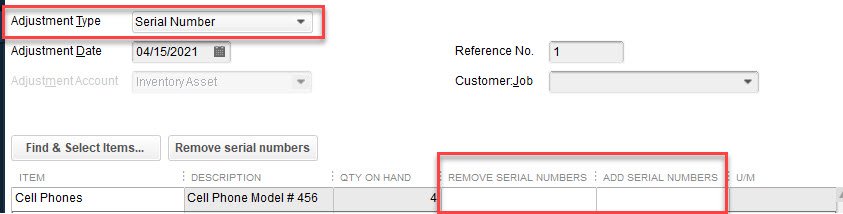
Clicking in the add serial numbers field will show a window to paste numbers.
Please let me know if you have any questions. I can help you set this up.
About the Blogger

Tim Plue
I am an Advanced Certified QuickBooks ProAdvisor. I have taught QuickBooks and Bookkeeping classes for over 12 years. I help small business owners run their business with QuickBooks. I can meet you onsite or remotely.